
Most problems trace back to setup mistakes: a single consumer router, access points tucked behind cabinets, flat networks with no guest separation, and no documentation when something breaks. Hiscox's 2025 report found that 59% of SME respondents reported an attack in the prior 12 months, so security belongs in the design from day one.
This guide walks through planning, selecting, securing, installing, and maintaining an office network.
Key Takeaways
- Inventory users, devices, applications, layout, and growth before buying hardware.
- Use wired connections for fixed equipment and business-grade Wi-Fi for mobility and guests.
- Segment employee, guest, voice, printer, and IoT traffic, and lock down administration.
- Test and document everything so troubleshooting and expansion stay simple.
Define Your Office Network Requirements and Design
Assess users, devices, and business needs
Start with a current-state inventory. List employees, workstations, laptops, printers, scanners, phones, cameras, servers, cloud applications, and guest devices that need connectivity.
Then flag the business-critical services and their tolerance for delay or downtime:
- VoIP and video conferencing
- Electronic health record or practice-management systems
- Legal, accounting, or financial applications
- Point-of-sale tools
- Large file transfers and cloud backups
Video is a useful yardstick. Zoom publishes group-call needs of roughly 2.6 Mbps up and 1.8 Mbps down for 720p, and 3.8 Mbps up and 3.0 Mbps down for 1080p. Multiply by the number of simultaneous meetings.

Microsoft also publishes Teams network targets, including packet loss under 1% and jitter under 30 ms.
Map the physical environment
Review the floor plan, number of floors, wall materials, conference rooms, reception, and where equipment will live. Mark areas that need structured cabling or a wireless survey.
Decide early which devices get Ethernet (desktops, printers, phones, access points) and which users need Wi-Fi. Plan guest access so visitors never touch internal systems.
Plan capacity, topology, and growth
Estimate simultaneous users during normal and peak periods, including backups, meetings, and seasonal surges. Map out the structure you need:
- Internet connection
- Router or firewall
- Switches and access points
- IP and DHCP approach
- VLANs
- Secure links to other sites or remote staff
Build in room to grow:
- Spare switch ports
- Extra cable runs to likely future desk or room locations
- Expandable wireless coverage
- Documented IP addressing
- A backup internet plan where downtime would hurt operations
Choose Equipment and Connectivity for the Workspace
Pick internet service for your workload
Don't buy on advertised download speed alone. Compare:
- Upload capacity and latency
- Service-level commitments and contract terms
- Support responsiveness
- Static IP needs
- Whether a second connection is available for failover
Provider offerings differ. Comcast's Dedicated Internet describes symmetrical service with a 99.99% uptime SLA, while AT&T Business Fiber lists symmetrical tiers up to 5 Gbps. Those are product claims, so confirm what's available at your address and in writing.
Router, firewall, and switches
A router directs traffic between your LAN and the internet. A business firewall or unified threat management appliance adds policy enforcement, VPN, intrusion prevention, content controls, and logging.
When comparing, check:
- Throughput with security features turned on
- Firmware support lifespan
- Authentication, logging, and remote-admin controls
- Compatibility with your planned VLANs and failover
For switches, choose managed models if you need VLANs, monitoring, traffic prioritization, or central administration. Cisco notes unmanaged switches are plug-and-play with nothing to configure, which can be fine for a very small, simple segment.
Check port count, uplink speed, and rack fit. Also check PoE, since access points and phones draw power over the cable:
| Standard | Type | Max switch output |
|---|---|---|
| 802.3af | PoE | 15.4 W |
| 802.3at | PoE+ | 30 W |
| 802.3bt | Type 3 | 60 W |
| 802.3bt | Type 4 | 90 W |

Business-grade Wi-Fi
Reliable office Wi-Fi uses dedicated access points with wired backhaul, cloud or controller management, planned channels, and proper authentication. One router in a closet won't do it.
Get a site survey or heat map before final placement. HPE Aruba gives 30-50 ft AP spacing as a starting point for a typical open office, not a formula. Keep access points away from cabinets, metal, microwaves, and cordless phones.
Physical infrastructure
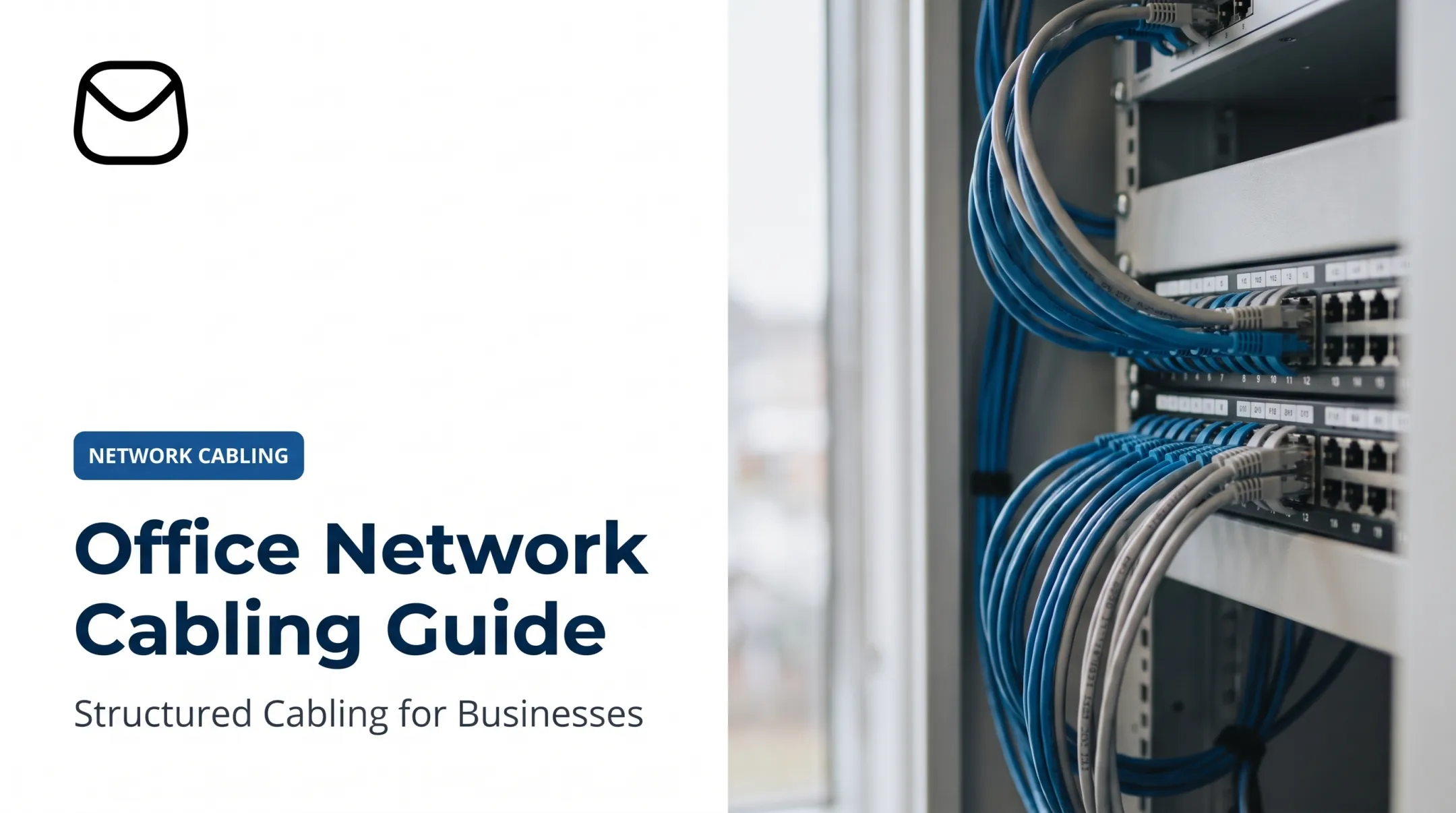
Neat infrastructure makes every later change easier. Include:
- Ethernet cabling: CommScope lists Cat 6A for 10 GbE up to 100 m, the channel limit
- Patch panels and clear cable labels
- Racks or wall cabinets with ventilation
- UPS power protection
- Locked access to equipment rooms
Also decide what stays onsite and what moves to the cloud, weighing security, availability, support, and compliance.
For cabling work, TIA-568.0-E covers topology and testing, and TIA-606-D covers labeling and records.
Build Security and Reliability into the Design
Secure administration first
- Use unique administrator accounts and remove default credentials
- Turn on multifactor authentication where supported
- Restrict remote administration and use encrypted management
- Review admin access regularly and remove departed staff and vendors promptly
NIST's small-business guidance puts changing default passwords, patching, and testing backups at the top of the list. Schedule firmware updates and keep configuration backups.
Segment traffic by risk
Separate VLANs isolate groups by risk:
- Employees and servers
- Guests
- Voice
- Printers, cameras, and IoT devices
- Management interfaces
Cisco describes 802.1Q as the standard for carrying multiple VLANs over a trunk. Write firewall rules that allow only what each segment needs. Pay particular attention to guest isolation, printer access, and admin systems.

PCI SSC notes adequate segmentation can reduce PCI DSS scope, though it recommends a QSA for environment-specific scoping.
Protect wireless users and visitors
- Use WPA3 where supported (the Wi-Fi Alliance says it is mandatory for certified devices)
- Give each network a distinct name and a long, unique passphrase, or use enterprise authentication
- Keep guests on a separate network that can't reach internal resources
- Handle contractors, BYOD, and shared devices with expiring credentials, approval, or a captive portal
Build in continuity
Ask what an hour of downtime costs you. Common options include:
- Backup internet with automatic failover
- UPS protection
- Spare equipment
- Redundant links
The FCC warns that VoIP may not work during a power or internet outage, so plan backup power and an alternate phone path. Test configuration backups and document recovery steps. CISA recommends storing backups separately from primary systems and testing recovery on a schedule.
Monitor and stay compliant
Monitor these signals:
- Device health and configuration changes
- Bandwidth and wireless performance
- Failed logins and unusual traffic
CISA's logging guidance recommends enabling logs on firewalls and centralizing and reviewing them.
Healthcare, legal, financial, and payment environments carry legal and contractual duties. HHS says it doesn't certify products, so a network feature never makes you automatically compliant. Align controls with your actual obligations.
Install, Test, Document, and Maintain the Network
Install in a controlled sequence
Schedule work to limit disruption and include a rollback plan. A sensible order:
- Run cabling and install the rack
- Configure the router and firewall
- Set up switches
- Place access points
- Onboard devices
- Cut users over

During the build, configure:
- IP addressing, DHCP, and DNS
- VLANs and firewall policies
- Wi-Fi networks and admin accounts
- VPNs and quality of service for voice
Test before you call it done
Validate these areas before go-live:
- Wired and wireless connectivity, coverage, and roaming
- Internet performance and failover
- Guest isolation and VLAN rules
- Printers, phones, and cloud applications
- Restore from a configuration backup
Document and maintain
NIST SP 800-128 treats network diagrams and configuration records as items to manage. Keep:
- A current network diagram and cable map
- Equipment inventory and warranty list
- IP address records
- Credential ownership process
- Configuration backup schedule
- A troubleshooting runbook
When to bring in a professional
Consider a partner for a new office, relocation, multi-floor site, regulated environment, multi-site network, structured cabling project, or any organization without dedicated IT staff.
QTSI, based in Wayne, New Jersey, supports businesses and nonprofits across New Jersey, New York, and Pennsylvania with network design, structured cabling, business internet, communications, managed IT, 24/7 monitoring, and ongoing support from one team. Weigh that option if you'd rather not run the project alone.
Frequently Asked Questions
What equipment do I need to set up an office network?
At minimum: a business internet connection, router or firewall, managed switches, wireless access points, Ethernet cabling, and UPS power protection. Add phones, servers, or cloud services as your applications require.
Should an office use wired or wireless networking?
Most offices do best with both. Use wired connections for desktops, printers, and phones, and Wi-Fi for laptops, meeting rooms, and approved guests.
How do I secure an office Wi-Fi network?
Use WPA3 or the strongest supported encryption, unique credentials, and secure admin access. Keep firmware updated, isolate guests, segment traffic, and monitor logs.
How many access points does an office need?
It depends on floor area, walls, device density, interference, and performance needs. A site survey or heat map gives a real answer; Aruba's 30-50 ft spacing is only a starting point.
Do I need separate networks for employees and guests?
Yes. Guest traffic should never reach internal systems. Phones, printers, cameras, and IoT devices often deserve their own segments too.
When should I hire a professional to set up an office network?
Consider one for an office opening or move, complex cabling, multi-site links, compliance-sensitive work, persistent performance problems, or when you lack internal IT expertise.